
Create MC Mod Installer
Now that you have a Minecraft launcher, you want to distribute your custom Minecraft setup to your end users.
The Gamer edition features the Built-In Updater, which allows you to automatically update your Minecraft install using an installation executable. There are many programs which can create an installer for you. In this tutorial, we will be using ClickTeam's Install Creator 2.
ByteBoxMedia is not affiliated with ClickTeam. The install creator software used in this tutorial is NOT our product, and therefore we can only provide minimal support. This tutorial is meant to be used as an example of where to start. Please consult your search engine of choice and ClickTeam's support for detailed help creating an installer.
Preparing The .Minecraft Directory
First, you need to have your profile prepared in a .minecraft folder. We only want to distribute our minecraft/modpack, not the full Microsoft launcher, so most of the folders and files here will not be included.
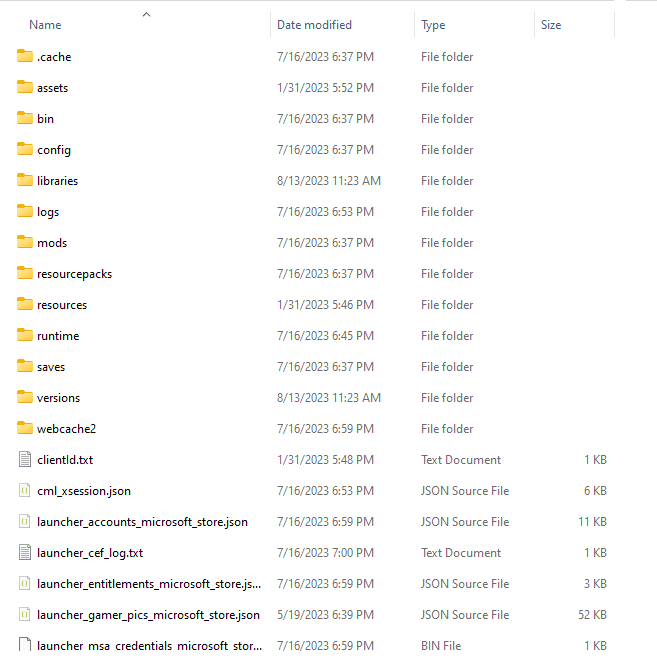
This folder contains more files and folders than your end user will need, so we will remove everything except for a few. Remove the following items to avoid breaking the user's existing setup:
- .cache - Launcher cache directory.
- bin - Microsoft launcher assets.
- logs - Log files generated by Minecraft (we do not want to send our logs to the user).
- saves - Where the user's save files are located. You don't want to overwrite these.
- screenshots - Where user screenshots are stored.
- Resources & runtime - More Microsoft directories.
- webcache2 - Another cache.
- options & optionsof.txt - In-game settings. Only send these if your modpack has specific required settings that are NOT part of a mod's config.
- servers.dat & usercache.json - Server/user information. Don't overwrite their server list.
- Any .json files - All temp files needed by Microsoft's launcher but not our own.
Now that we are done cleaning it up, this is what is left in the folder:
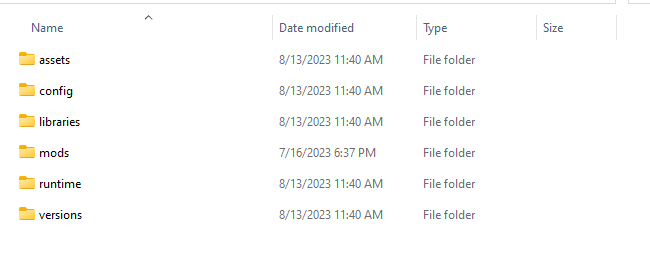
If you want, you can include the following folders, but be sure not to delete the ones on the user's computer:
- resource, shader, & texture packs - If your mod pack requires custom aesthetics, install them here (but ensure the installer doesn't overwrite the user's existing packs).
Inside the versions folder, keep only the version you intend to install. In the example below with several existing profiles, we will remove all but our newly installed Forge version.
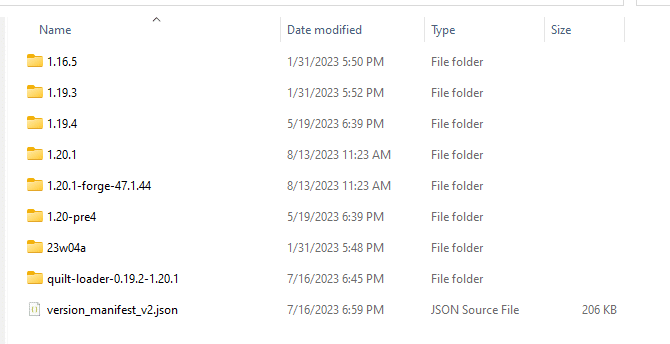
Once we have done that, our Versions folder will look like this:
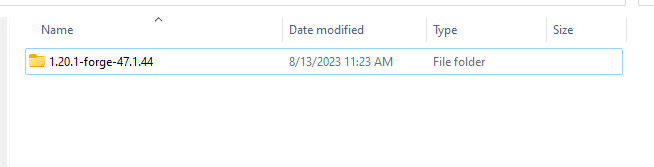
Pay attention to the name of this version folder! This is the exact version string we will use in the Minecraft object inside your GLC launcher.
Creating the Installer
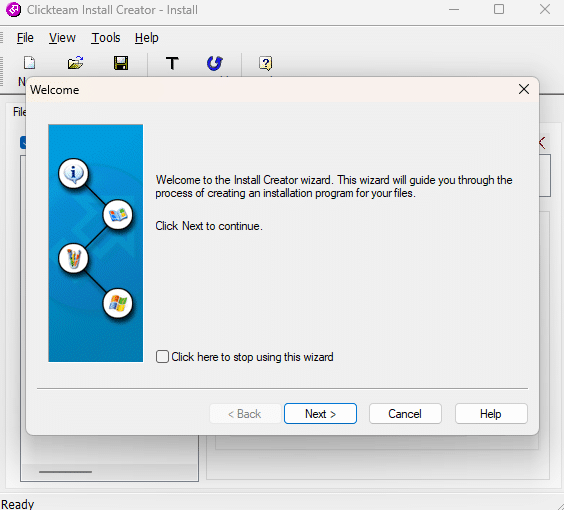
Now that our folder is prepared, let's create the installer. Open up Install Creator and use the Wizard to set it up. Click Next.
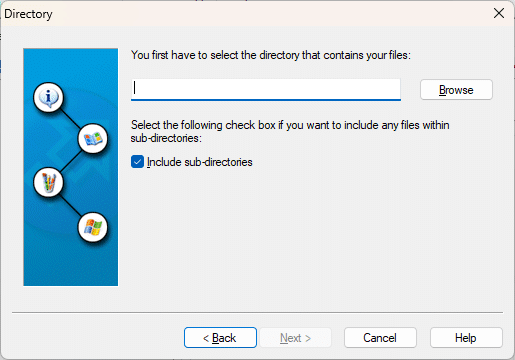
Select the .minecraft directory we cleaned up in the previous step.
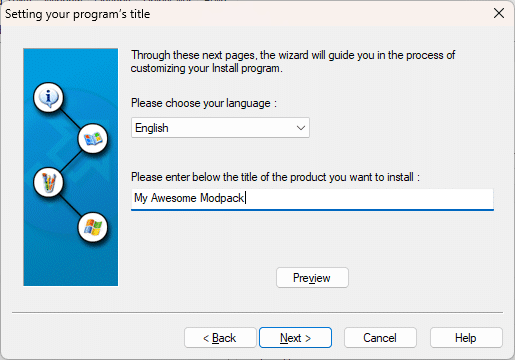
Enter the name you want to appear on your installer.
Note: The next few pages about images, licensing, etc., are optional. You can fill those out if you wish.
The Installation directory is the most important step. By default, the installer will target Program Files. This will not work.
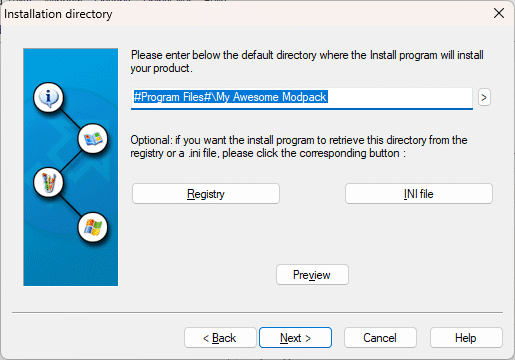
Delete what is in the entry box, then hit the arrow to the right and select Application Data Directory.
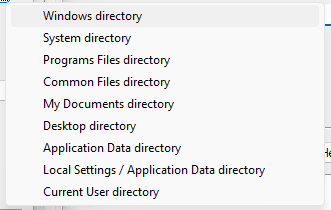
Then fill in the remainder of the install location so it looks like this:
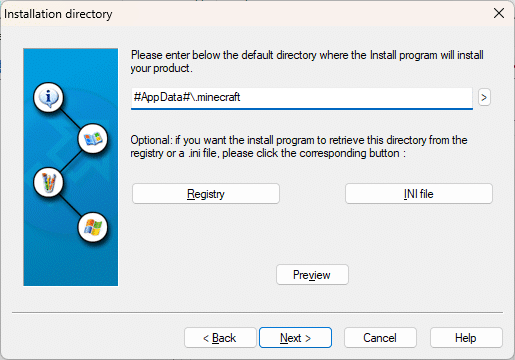
The standard Minecraft plugin ONLY supports launching from the default .minecraft folder located in %appdata%.
Continue through the rest of the Wizard, adding any information you like.
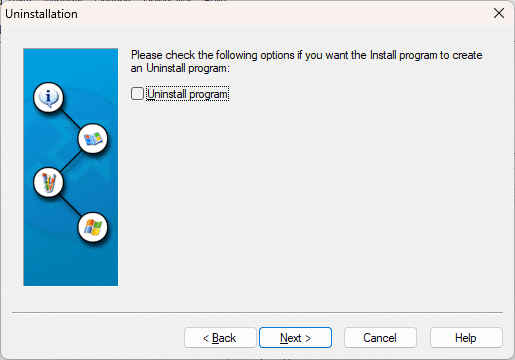
Unselect "Uninstall Program." We do not need an uninstaller.
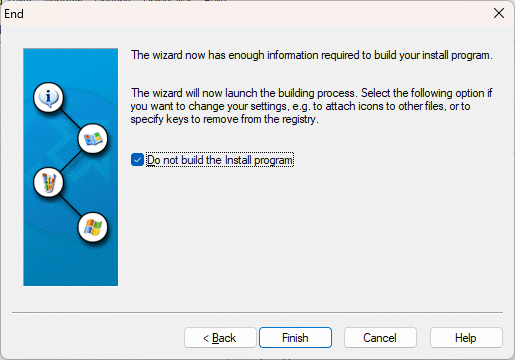
At the last step, check "Do not build the install program" as we want to make manual changes before it's compiled.
Final Modifications to Installer
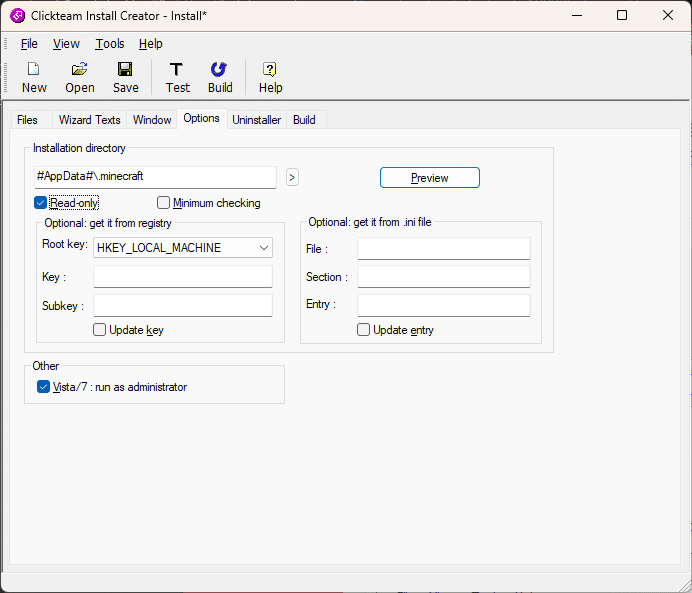
Go to Options and enable Read-Only. This prevents the install directory from being changed by the user.
Including Launcher Updates
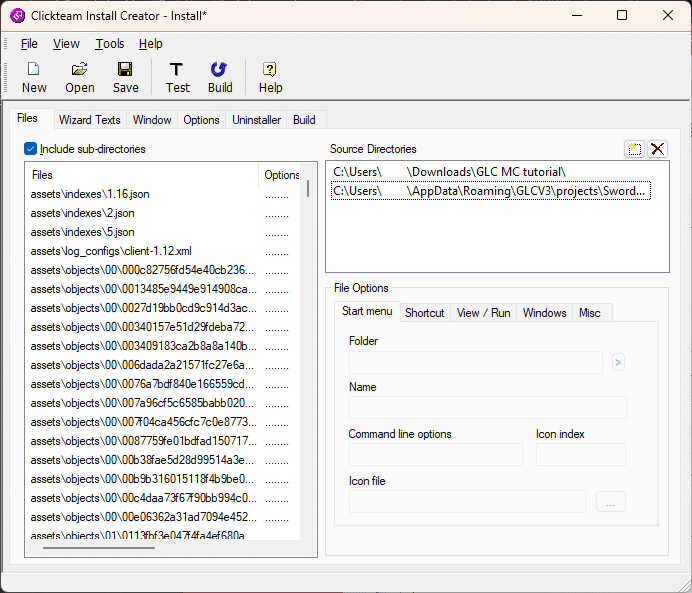
If you want to update your launcher alongside the mod installer, the easiest way is to add the launcher files as a source directory. This will bundle them into your installer.
Now that your setup is complete, hit Build. Test the installer to make sure the files successfully extract to %appdata%\.minecraft. If so, you are ready to use the Built-In Updater!
You can now distribute your installer any way you see fit (like hosting it as a direct download on your website).
Future Minecraft Mod Updates
If there are any future updates to your mod files, simply repeat this process to build a new installer and use the game update check object inside Game Launcher Creator to trigger a background download of the new executable.